FnBuddy User Guide
FnBuddy User Guide
Welcome to the FnBuddy User Guide! This comprehensive guide is designed to help you navigate and utilise the FnBuddy part-time employee contact management application with ease. Whether you need to create, update, schedule or retrieve the payroll of your employees, or simply wish to navigate the application seamlessly, this guide will equip you with the knowledge to do so effectively.
Our guide assumes that you are a restaurant manager with a basic understanding of using software applications, and are familiar with common restaurant operations and terminology.
Table of Contents
- FnBuddy User Guide
- Table of Contents
- Introduction to FnBuddy
- Quick Start
- GUI Components
- Pages
- Features
- Notes about the command format
- Adding a person
add - Listing contacts
list - Deleting a person
delete - Editing a person
edit - Locating a person by name
find - Clear all contacts
clear - Exiting the program
exit - Archiving the person
archive - Unarchive the person
unarchive - Retrieving payroll
payroll - Schedule employees
schedule - Unschedule employees
unschedule - Saving the data
- Known Issues
- Planned Enhancements
- Glossary
- FAQ
- Command summary
Click on any item in the table of contents to instantly navigate to that specific section.
Introduction to FnBuddy
Whether you’re a seasoned restaurant manager or new to the role, FnBuddy will serve as your trusted companion, empowering you to streamline your operations and enhance your team management capabilities. FnBuddy manage contacts optimised for use via a Command Line Interface (CLI) while still having the benefits of a Graphical User Interface (GUI). So if you’re a fast typer, FnBuddy is just the application for you!
Features that FnBuddy offers with your needs in mind include:
- contact creation and management such as editing and archiving
- scheduling of part-time employee contacts on specified dates
- payroll retrieval that calculates the total payroll for all employees who worked within a specified date range (currently dependent on their scheduled hours).
Quick Start
- Ensure you have Java 11 or above installed on your Computer.
- Download the latest fnbuddy.jar from here.
- Move the fnbuddy.jar file to the directory you intend to designate as the home folder for your FnBuddy.
- Open the terminal on your Operating System.
- For Windows, press
Win + R, typecmd, and press Enter. - For macOS, press
Cmd + Space, typeTerminal, and press Enter. - For Linux, press
Ctrl + Alt + T.
- For Windows, press
-
You should see a terminal window similar to the one below open. (The terminal window will look different depending on your Operating System.)
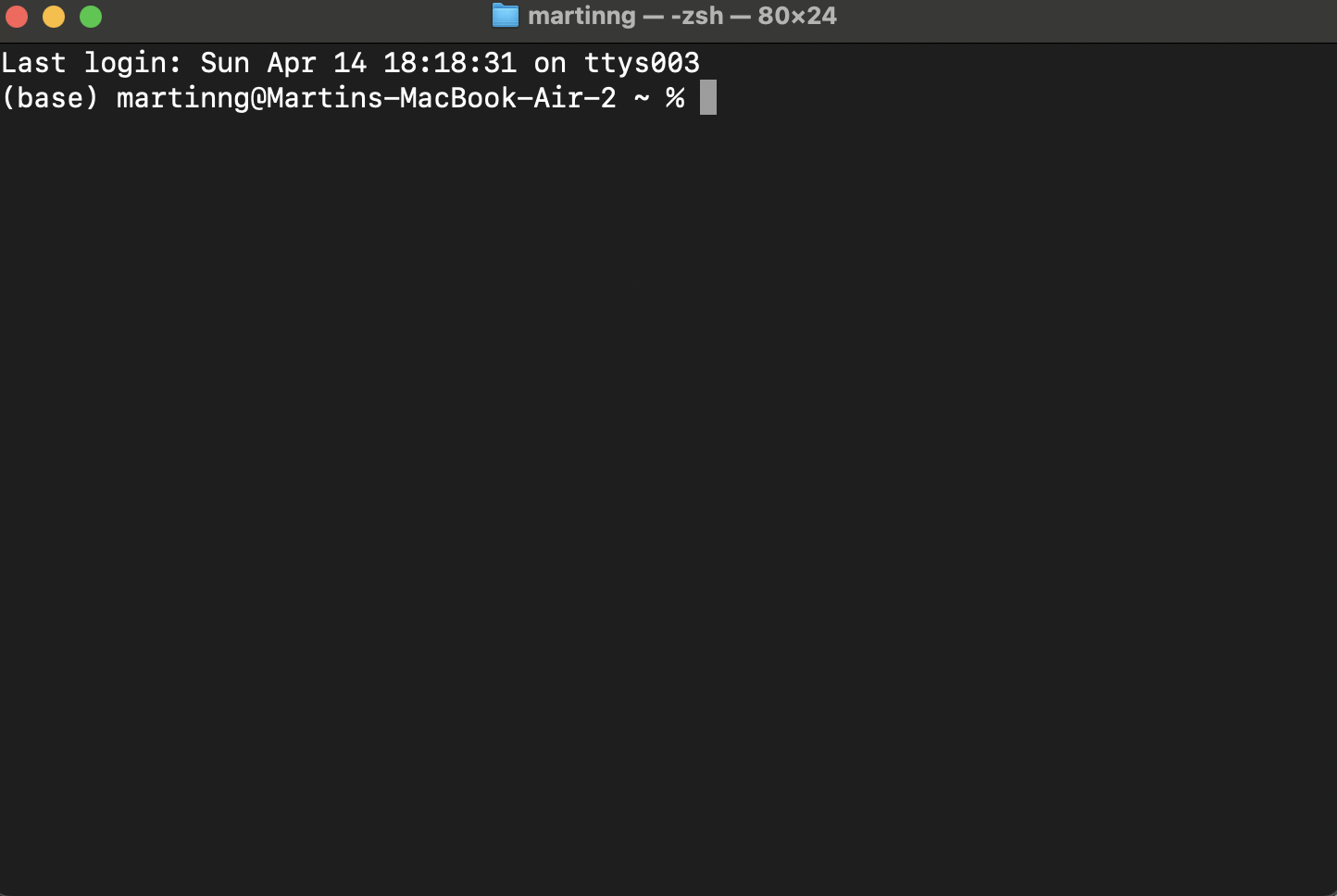
Example of a terminal window on a MacOS system - Type
cdfollowed by the path to the folder you copied the fnbuddy.jar file to.- Windows Example:
cd C:\Users\JohnDoe\Desktop\FnBuddy. - MacOS Example:
cd /Users/JohnDoe/Desktop/FnBuddy. - Linux Example:
cd /home/JohnDoe/Desktop/FnBuddy.
- Windows Example:
- Type
java -jar fnbuddy.jarto run the application. -
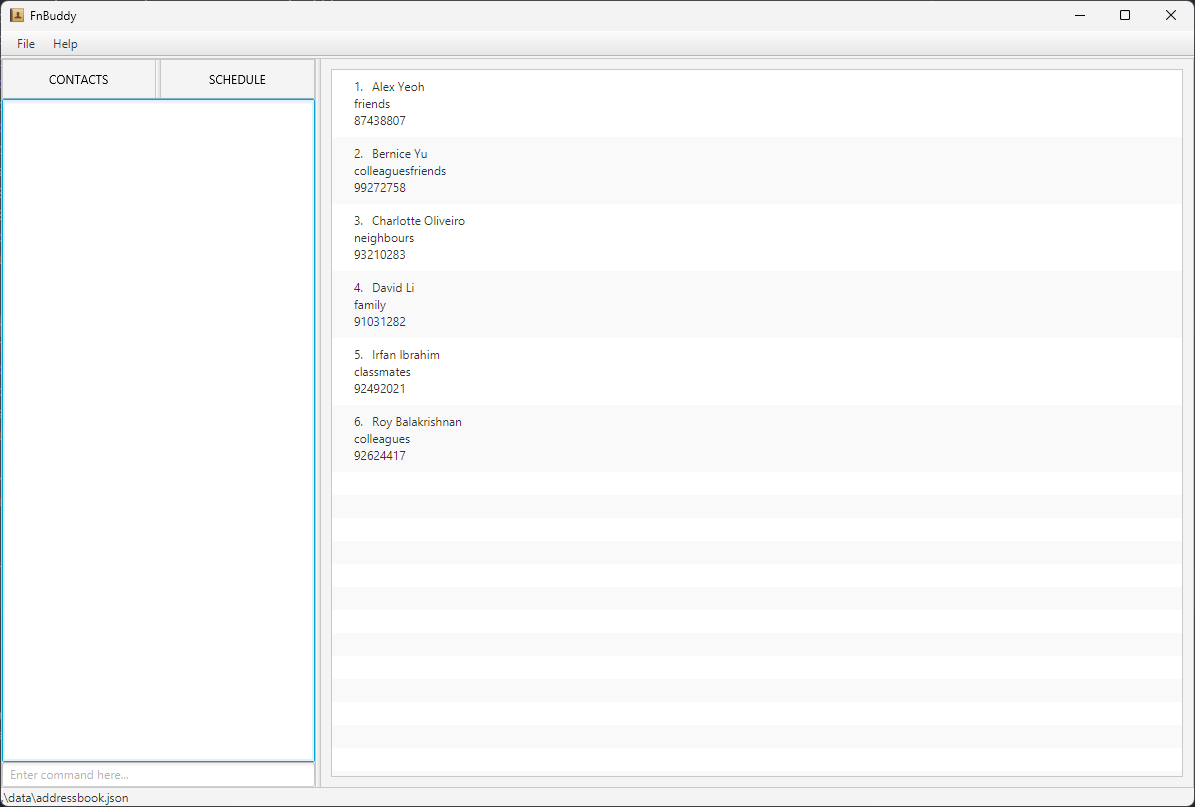
An application similar to the one below should appear in a few seconds. For a more detailed explanation of the Graphical User Interface (GUI) and its components, refer to the GUI Components. Note how the app contains some sample data. The list of contacts displayed at startup is the main list of unarchived contacts. More details in the Features section below.
FnBuddy GUI - Type the command in the command box and press Enter to execute it. e.g., typing
helpand pressing Enter will open the help window.
Some example commands you can try:
add -fn Javier -ln Tan -p 98749874 -s m -pr 10.5 -a 123 Street -b posb 420053040: Adds a contact named Javier Tan to FnBuddy.list all: Lists all contacts.list main: Lists all un-archived contacts.list archive: Lists all archived contacts.archive 98749874: Archives the contact associated with the phone number 98749874.delete 98749874: Deletes the contact associated with the phone number 98749874 from FnBuddy.edit 98749874 -a NUS: Edits the address of the contact associated with phone number 98749874 to NUS.find james: Searches the address book for a person whose name matches “james”.clear: Deletes all contacts.exit: Exits the app.
Refer to the Features section below for details of each command.
GUI Components
|  |
|—————————————-|
| Labelled UI Components |
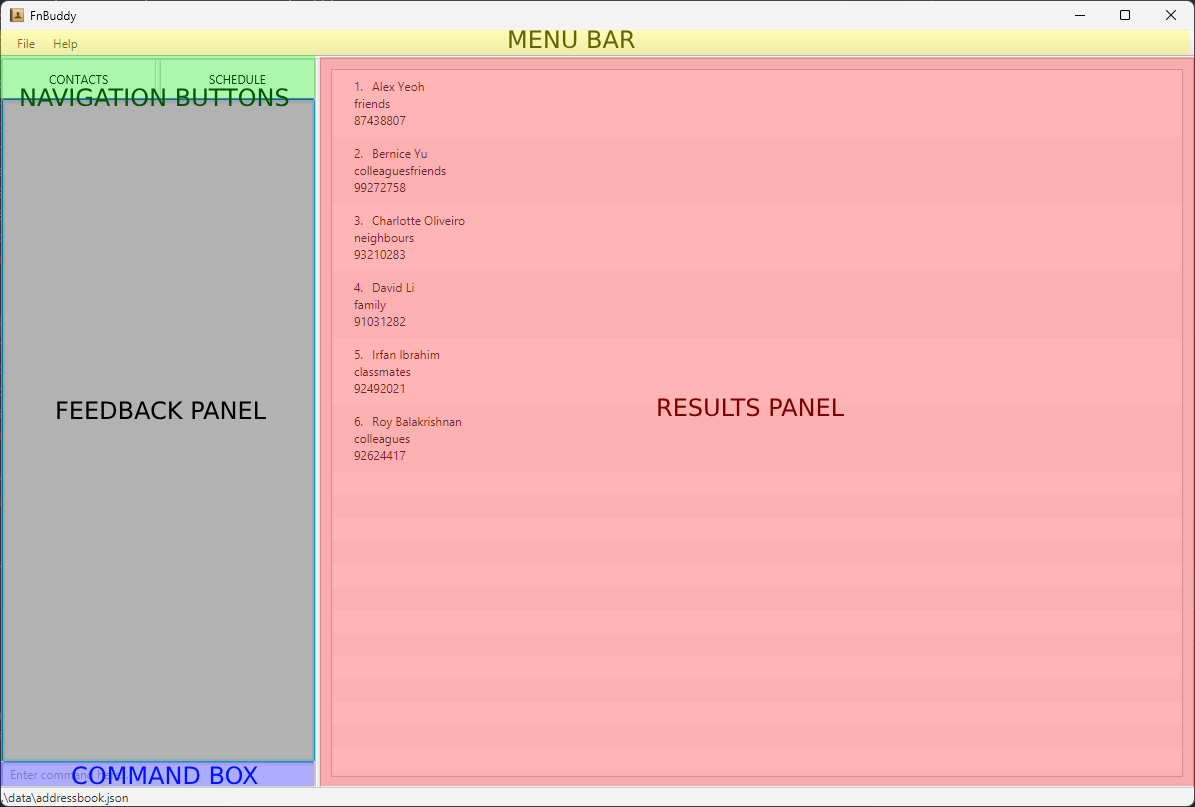
The names of the UI components have been labelled in the image above. The components are as follows:
|
|—————————————-|
| Labelled UI Components |
The names of the UI components have been labelled in the image above. The components are as follows:
- Command Box - This is where you can type commands to interact with the application.
- Feedback Panel - This panel displays feedback messages to the user. These feedback messages can be success messages, error messages, or help with commands.
- Navigation Buttons - These buttons allow you to navigate between the different pages of the application. The buttons are labelled “CONTACTS” and “SCHEDULE”.
- Results Panel - This panel displays the currently selected page, based on the last command or button clicked. The results panel will display the contacts, schedule, or payroll based on the page selected.
- Menu Bar - The menu bar contains the “File” and “Help” menus. The “File” menu contains the “Exit” option, which allows you to exit the application. The “Help” menu contains the “Help” option, which provides a link to this user guide for the application.
Pages
There are 3 main pages in the application:
-
Main Page - This page shows all the contacts in the application. You can view the details of each contact by clicking on the contact.
FnBuddy Main Page -
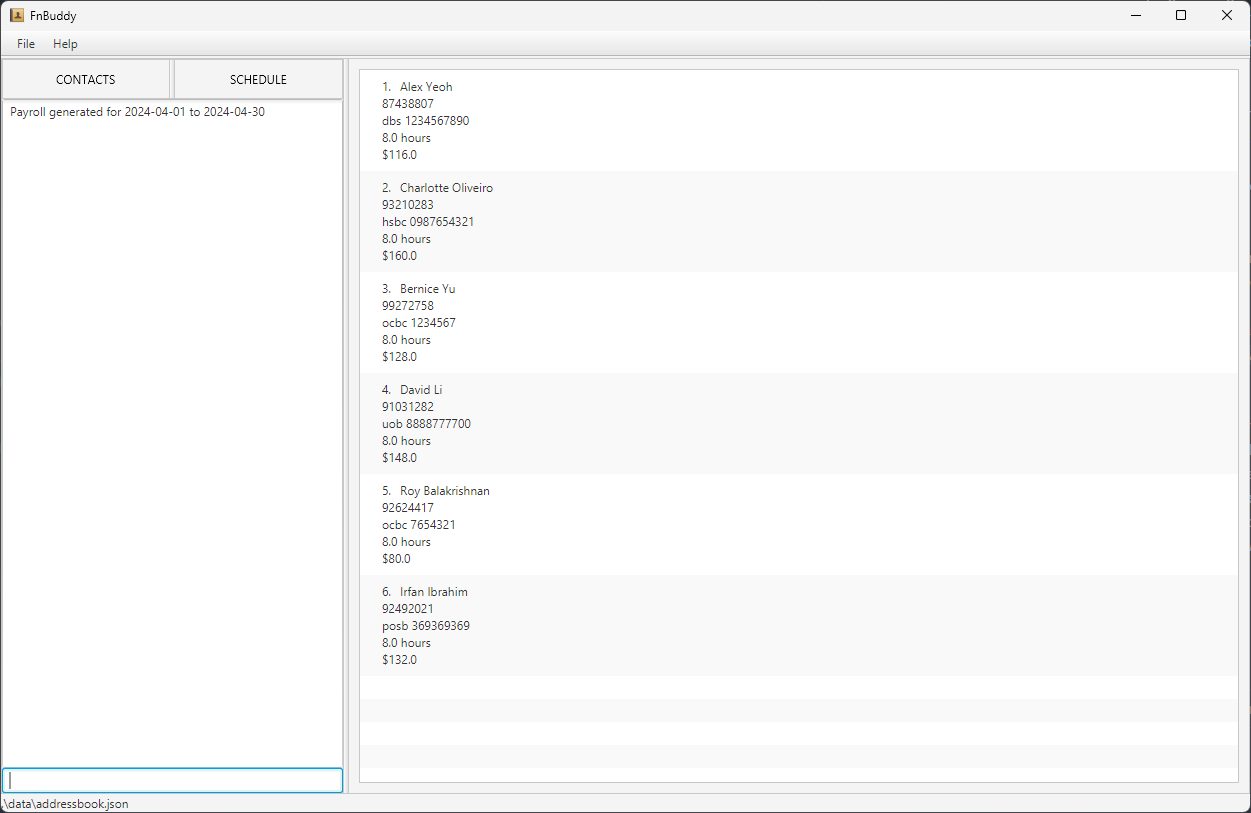
Payroll Page - This page shows the payroll of all employees for the given date range in the payroll command.
FnBuddy Payroll Page -
Schedule Page - This page shows the schedule of all employees for the next four weeks (including the current week).
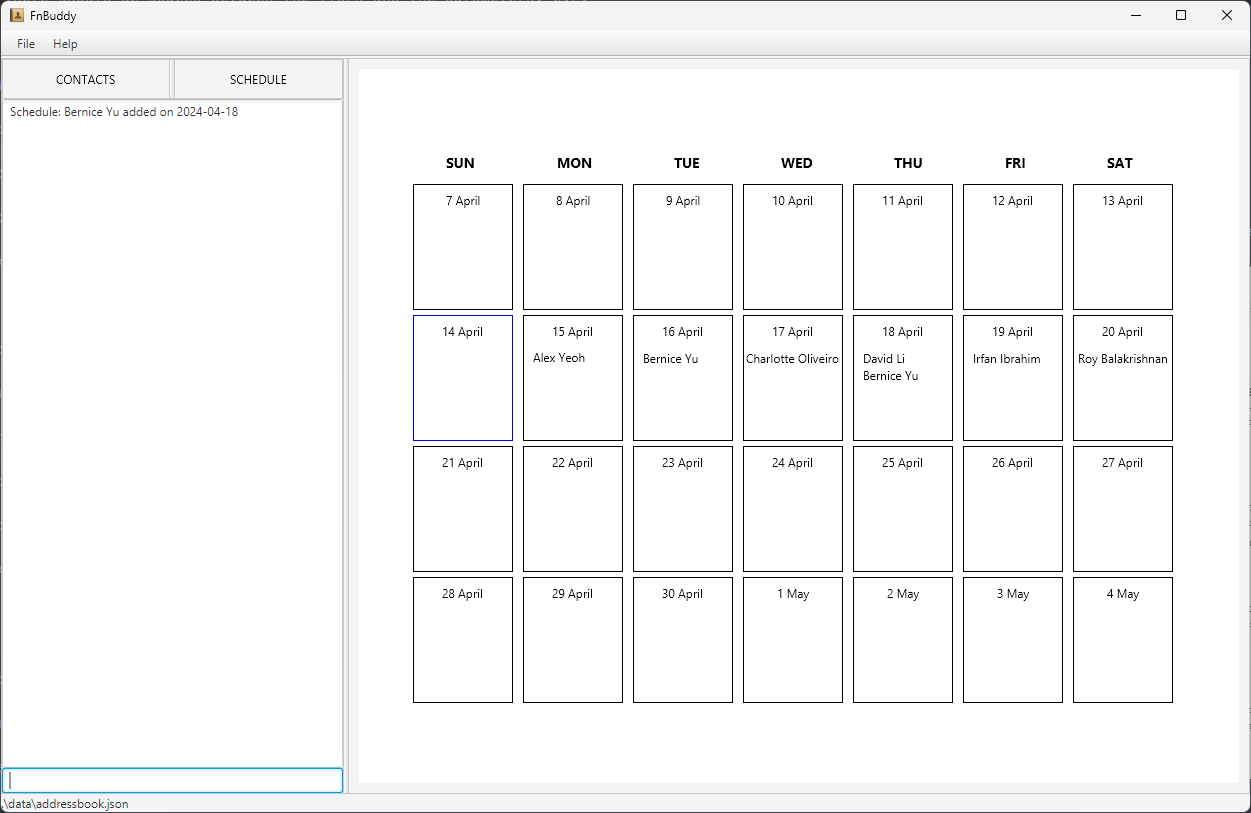
FnBuddy Schedule Page
Command Type
With the 3 different pages, different types of commands can also be used to navigate the application. These types are as follows:
- Main Page Commands - These commands when used will navigate to the main page of the application.
- Payroll Page Commands - These commands when used will navigate to the payroll page of the application.
- Schedule Page Commands - These commands when used will navigate to the schedule page of the application.
Features
Notes about the command format
- Words in UPPER_CASE are the parameters to be supplied by the user. e.g., in
add -fn FIRST_NAME -ln LAST_NAME, FIRST_NAME and LAST_NAME are parameters which can be used asadd -fn Javier -ln Tan. - Items in square brackets are optional. e.g.,
-fn FIRST_NAME -ln LAST_NAME [-t TAG]can be used as-fn Javier -ln Tan -t/waiteror as-fn Javier -ln Tan. - Items with
…after them can be used multiple times, including zero times. e.g.,[-t TAG]…can be used as-t cook -t waiter -t dishwasher, etc. - Parameters can be in any order. e.g., if the command specifies
-fn FIRST_NAME -ln LAST_NAME,-ln LAST_NAME -fn FIRST_NAMEis also acceptable. - Extraneous parameters for commands that do not take in parameters (such as help, exit, and clear) will be ignored. e.g., if the command specifies
help 123, it will be interpreted ashelp. - If you are using a PDF version of this document, be careful when copying and pasting commands that span multiple lines, as space characters surrounding line-breaks may be omitted when copied over to the application.
- There should be spaces between the flags and the parameters. e.g.,
add -fn Javier -ln Tanis correct, whileadd -fn Javier-ln Tanis incorrect. However, extra spaces are allowed. e.g.,add -fn Javier -ln Tanis also correct. - The types of commands are divided into 3 categories: Main Page Commands, Payroll Page Commands, and Schedule Page Commands. For more details, refer to the Pages section below.
- If you key in any command that is not recognised by the application, the feedback panel will display an error message indicating that the command is not recognised.
- If you key in any command that is recognised by the application but has incorrect parameters, the feedback panel will display an error message indicating that the command has incorrect parameters. Just follow the correct format and try again!
Adding a person add
Adds a person’s contact to FnBuddy.
Format: add -fn FIRST_NAME -ln LAST_NAME -p PHONE_NUMBER -s SEX -pr PAY_RATE -a ADDRESS [-b BANK_DETAILS] [-t TAG]…
Command Type: Main Page Command
Example:
add -fn John -ln Doe -p 91860934 -s m -pr 20.50 -a 123 Main St, Cityadd -fn Jane -ln Smith -p 98765432 -s f -pr 25.50 -a 432 Orchard Road -b posb 123456789 -t waiter -t bartender
Note: All contacts added are compressed to only show FIRST_NAME, LAST_NAME and PHONE_NUMBER by default. To view all the contact’s information, simply click on the GUI contact to expand it.
Listing contacts list
Shows a list of contacts in FnBuddy depending on which you’d like to view. On launch of the application, the default list shows all un-archived contacts only.
Format: list LIST_TYPE
Command Type: Main Page Command
Example:
list allshows all contacts in FnBuddy.
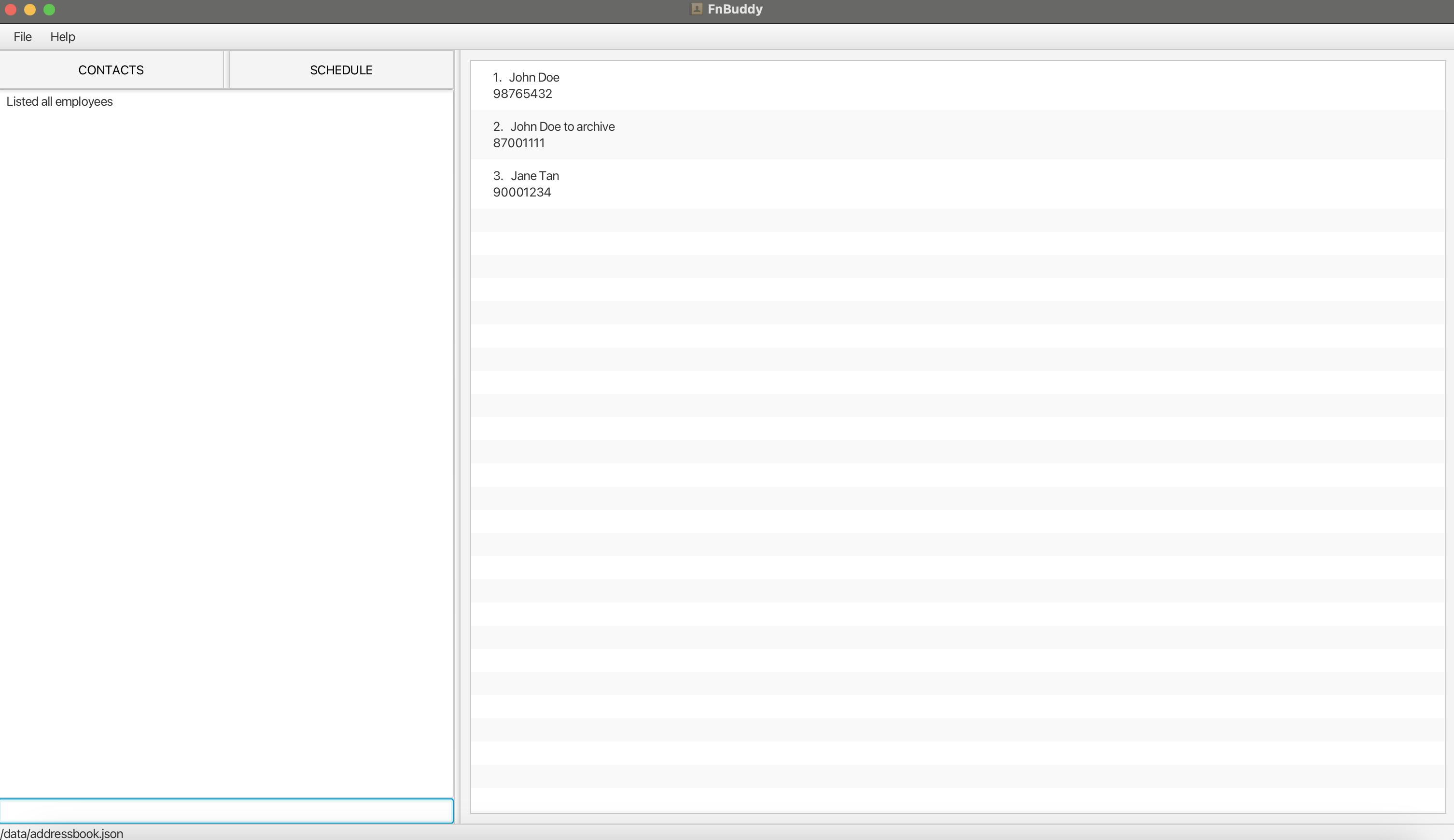 |
|---|
| Example result panel display for a successful list all command |
list mainshows all un-archived contacts in FnBuddy.
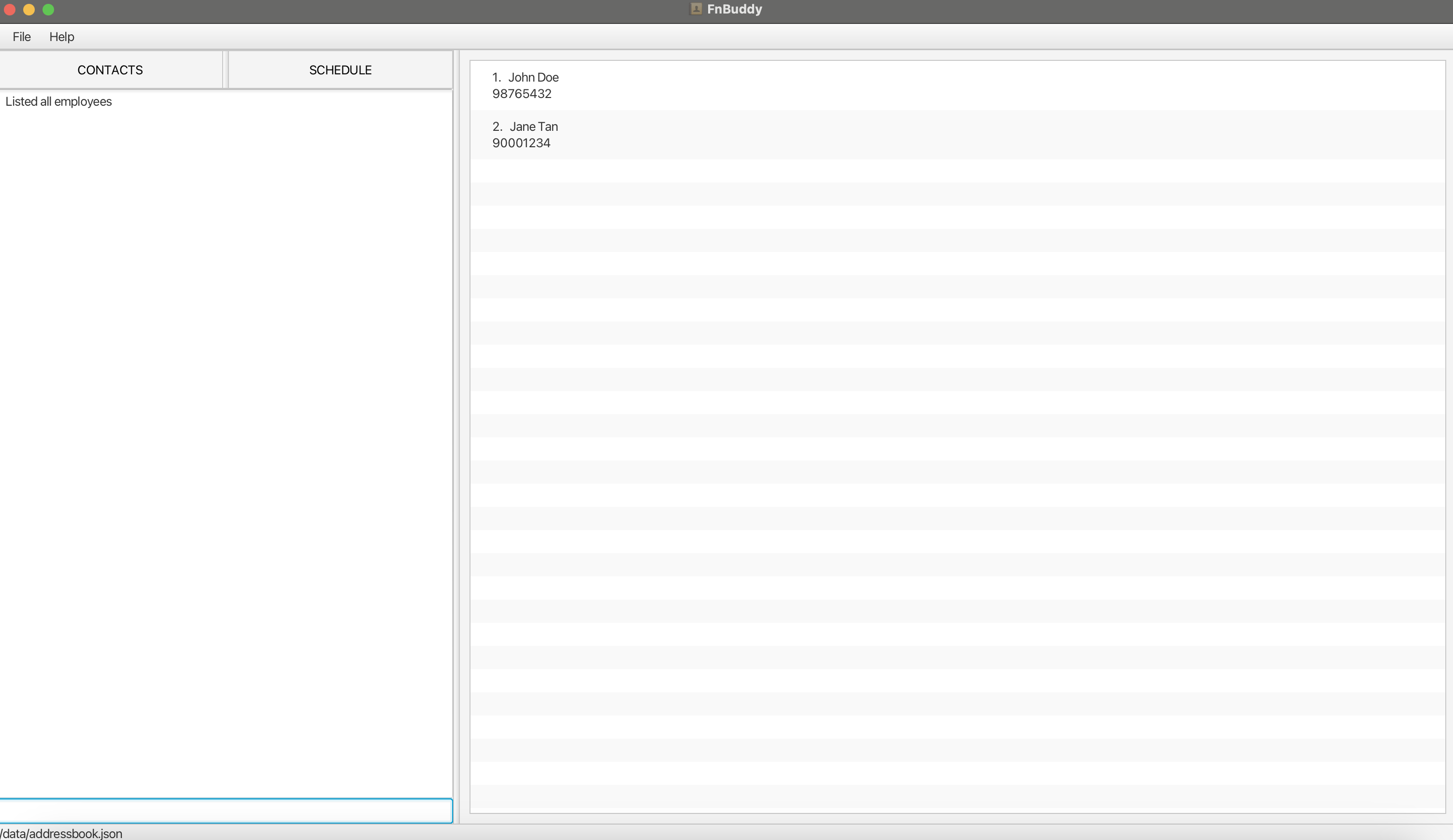 |
|---|
| Example result panel display for a successful list main command |
list archiveshows all archived contacts in FnBuddy.
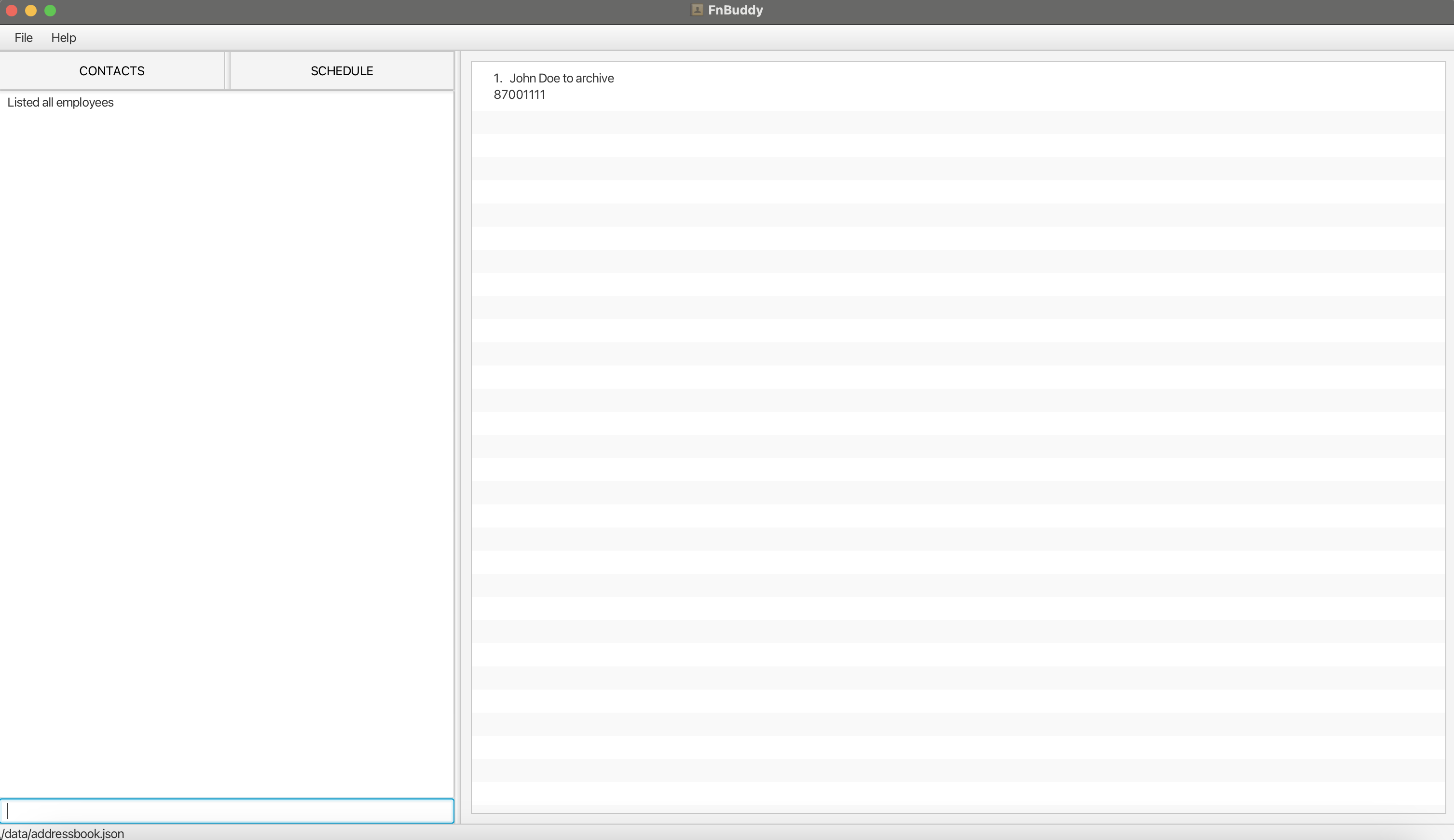 |
|---|
| Example result panel display for a successful list archive command |
Note: If unexpected extraneous parameters are added such as list main 123, the command will default to list all. (eg. you are currently viewing list all and want to switch to list archive, but typed list archivee instead, there will be no visible change on the GUI as it has defaulted to list all.)
Note: We understand that the current feedback messages for the list command may not be sufficient to inform you which list you are currently viewing. As we continue to strive and improve your experience with us in upcoming versions, we seek your understanding on this for FnBuddy’s current version and have addressed some possible scenarios in the FAQ section.
Deleting a person delete
Deletes the specified person from FnBuddy.
Format: delete PHONE_NUMBER
Command Type: Main Page Command
Example:
delete 91860934deletes the person with the number 91860934 from FnBuddy.
Editing a person edit
Edits an existing person in FnBuddy.
Format: edit PHONE_NUMBER [-fn FIRST_NAME] [-ln LAST_NAME] [-p PHONE_NUMBER] [-s SEX] [-pr PAY_RATE] [-a ADDRESS] [-b BANK_DETAILS] [-t TAG]…
Command Type: Main Page Command
Example:
edit 91860934 -a Room 504, Marina Bay Sands -pr 25Edits the address of the person with the phone number 91860934 to Room 504 Marina Bay Sands, and their pay rate to 25 dollars per hour, respectively.edit 98765432 -tClears all existing tags from the person with the phone number 98765432. Take note to put an additional space after the-tflag to clear all tags.
Note: You can only edit contacts that are currently visible in the panel. If you are unable to find the contact you
wish to edit, use the find command to locate the contact first, or use the list all command to view all contacts
before editing that particular contact.
Locating a person by name find
Finds persons whose names match completely any of the given keywords. The search is case-insensitive.
Format: find KEYWORD [MORE_KEYWORDS]
Command Type: Main Page Command
Example:
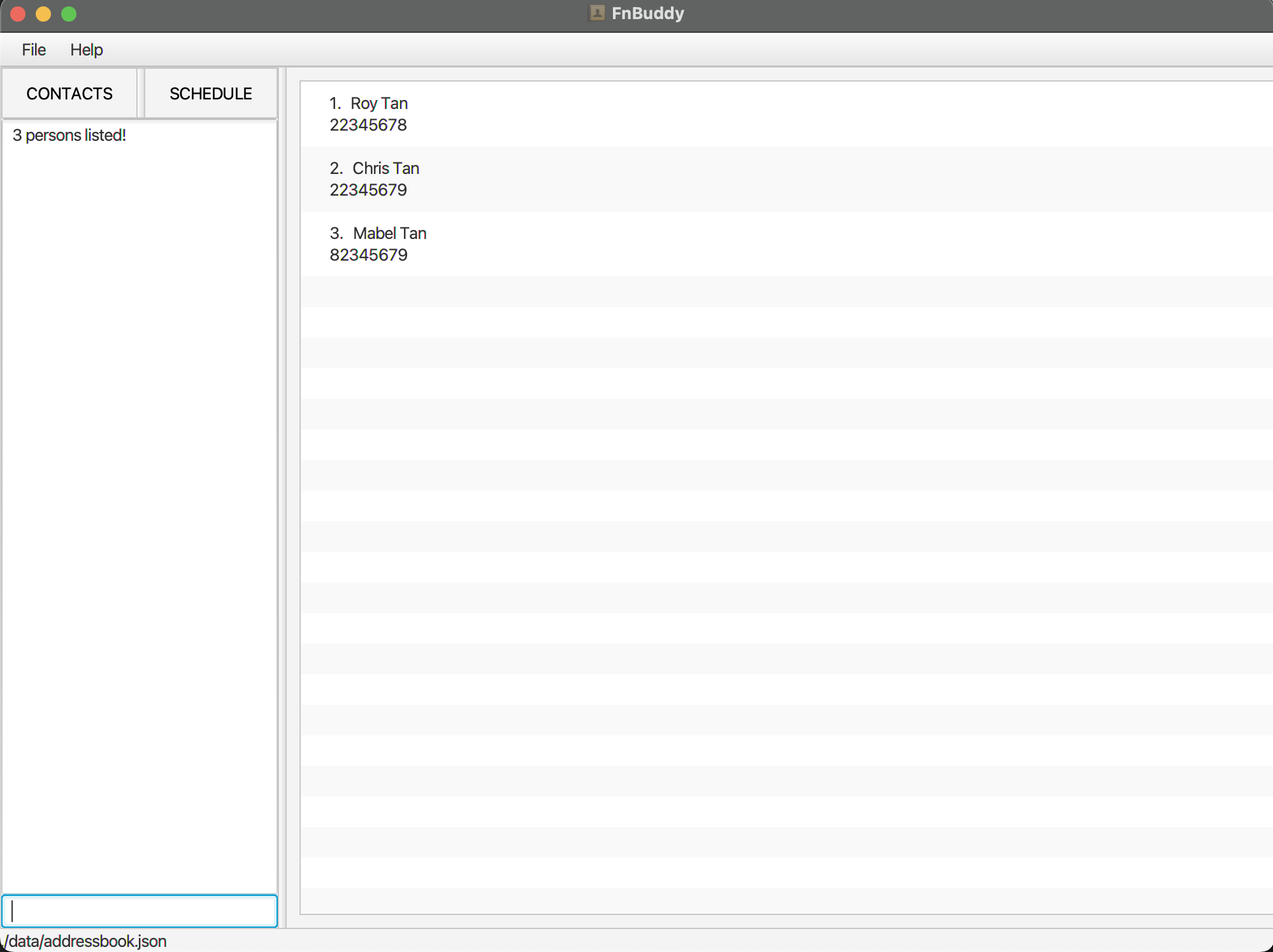
find tanreturns all contacts with names matchingtan.
 |
|---|
| Example result panel display for a successful find command |
Clear all contacts clear
Delete all employee contacts.
Format: clear
Command Type: Main Page Command
WARNING! This action is permanent and non-reversible! Make sure that you want to clear FnBuddy before you execute the command.
Exiting the program exit
Exits the program.
Format: exit
Archiving the person archive
Archives the person’s contact so that it is hidden from the main list of contacts.
Format: archive PHONE_NUMBER
Command Type: Main Page Command
Example:
archive 91860934archives the person with the number 91860934 from FnBuddy’s main list of contacts.
Unarchive the person unarchive
Unarchive the person’s contact so that it is shown in the main list of contacts.
Format: unarchive PHONE_NUMBER
Command Type: Main Page Command
Example:
unarchive 91860934un-archives the person with the number 91860934 from FnBuddy’s main list of contacts.
Retrieving payroll payroll
Retrieve employee’s payroll for a given start and end date
Format: payroll -sd START_DATE -ed END_DATE where START_DATE and END_DATE are in the format YYYY-MM-DD.
Command Type: Payroll Command
Example:
payroll -sd 2024-04-01 -ed 2024-04-30calculates the payroll of all employees that have worked within 1st April 2024 and 30th April 2024.
|
|---|
| Example result panel display for a successful payroll command |
Note: Employee’s payroll is calculated by multiplying 8 to their respective PAY_RATE. We are assuming each shift is 8 hours.
Schedule employees schedule
Adds a person in FnBuddy to the schedule on a specified date.
Format: schedule PHONE_NUMBER DATE where DATE is in the format YYYY-MM-DD.
Command Type: Schedule Command
Example:
schedule 91860934 2024-04-01Adds the person with the phone number 91860934 to the schedule on 1st April 2024.
|
|---|
| Example result panel display for a successful schedule command |
Note: If you add a duplicate entry in the schedule for the same date, the feedback message will not prompt this. However, the schedule will not be updated with the new entry.
Unschedule employees unschedule
Removes a person in FnBuddy from the schedule on a specified date.
Format: unschedule PHONE_NUMBER DATE where DATE is in the format YYYY-MM-DD.
Command Type: Schedule Command
Example:
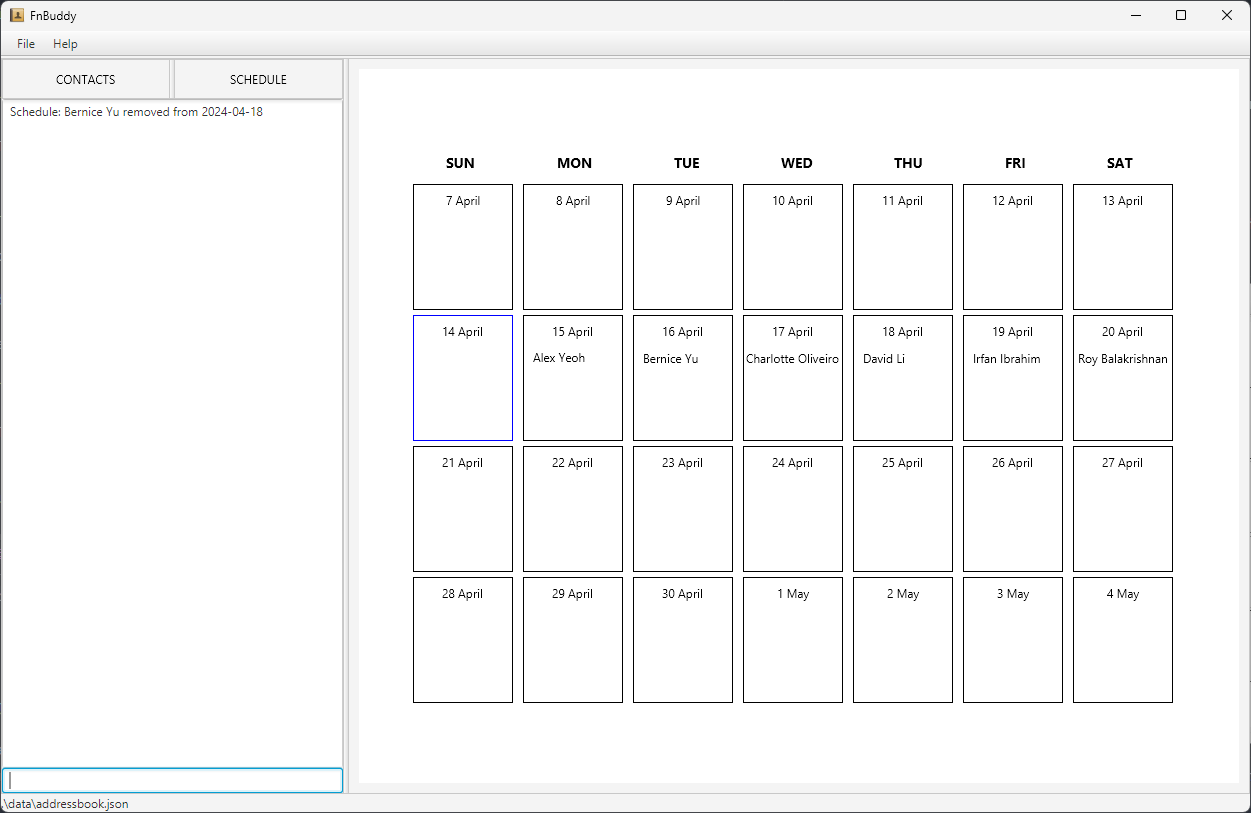
unschedule 91860934 2024-04-01Removes the person with the phone number 91860934 from the schedule on 1st April 2024.
 |
|---|
| Example result panel display for a successful unschedule command |
Saving the data
FnBuddy data is stored in the hard disk automatically after any command that changes the data. Rest assured, there is no need to save manually.
Modifying saved data
⚠️ For advanced users only!
You may edit the JSON files directly in the data folder if you wish to make changes to the data without using the app. However, if the JSON files are no longer in the correct format, the app may not be able to read the data correctly and may crash or have unexpected behaviour.
If you still wish to edit the JSON files, for the schedule.json file, note that there are additional constraints you must follow aside from the format:
- The contact in the schedule must exist in the main list of contacts i.e. you should not add a new contact that does not exist, in the schedule.json file.
- There should not be duplicate entries for the same contact on the same date.
- There should not be duplicate entries for the same date.
Known Issues
- When using multiple screens, if you move the application to a secondary screen and later switch to using only the primary screen, the GUI will open off-screen. The remedy is to delete the
preferences.jsonfile created by the application before running the application again. a. Alternatively, for Windows users, you can press Shift and right-click the program icon on the taskbar, Select Move, and use your left or right arrow keys to move the window until the window appears. - The same feedback message ‘listed all employees’ produced by the application when the list commands (
list all,list main,list archive) are inputted is used. The current universal feedback message does not provide the user with enough information about which list they are viewing. There is currently no remedy for this flaw, and it is set to be a future enhancement. - The
scheduleandpayrollfeature currently lets you schedule and calculate payroll for employees who are not in the main list of contacts. There is no current remedy for this flaw apart from you as a user being mindful of not scheduling an archived contact. - The
payrollfeature currently calculates the payroll based on the pay rate of each employee and assumes that each shift is 8 hours. This may not be accurate for all employees, especially if they work different hours or have different pay rates. - The
payrollfeature currently accepts invalid date ranges, such as end dates that are before the start date. This may lead to incorrect payroll calculations. There is no current remedy for this flaw apart from you as a user being mindful of the date ranges you input.
Planned Enhancements
Adding a view feature
- In order to cater to the user’s preference of a command line interface, we will be adding a
viewfeature that will allow users to view all the details of a contact without having to click on the contact card in the GUI, which is the current only way to access all the details of a contact.
Enhancements to Archive Feature
- Making the archive status of each person visible to the user on each contact card. This is to improve the usability of the archive feature and add more differentiation to archived and unarchived contacts, which is currently only differentiated by which list (list main OR list archive) they are viewing.
More Informative List Command Feedback
- To provide more informative feedback to the user when they use the list command, we will be updating the feedback messages to display the list type that the user is currently viewing. This will help the user to know which list they are currently viewing, as the current feedback message is the same for all list commands.
Stricter Validations for Schedule and Payroll Features
- To prevent users from scheduling or calculating payroll for contacts that are supposed to be archived, we will be adding validation checks to ensure that only contacts in the main list can be scheduled or used for payroll calculations.
- To ensure that only valid date ranges are used for payroll calculations, we will be adding validation checks to ensure that the start date is before the end date.
Enhanced Flexibility for Schedule Feature
-
Currently, the application calendar only allows users to view the next real time four weeks, without the option to toggle to the previous or next months. We will be adding the ability to toggle between months to allow users to view and schedule employees for any date in the future. This will also allow users more flexibility with the scheduling feature.
-
In order to cater to employees having differing shift hours, we will be adding the ability to input and modify the number of hours worked by each employee during a shift. This will allow for more accurate payroll calculations and better tracking of employee work hours as compared to the current restricted 8 hours per shift assumption.
Separating Multiple Tags
- Currently, when multiple tags are added to a contact, they are displayed as a single string. We will be improving the tag interface to allow for better visualisation of tags in the future.
Glossary
- CLI - Command Line Interface
- A text-based interface used to interact with software applications. In the context of this application, the CLI is used to input commands to manage employee contacts. You can type commands into the command box as shown below.
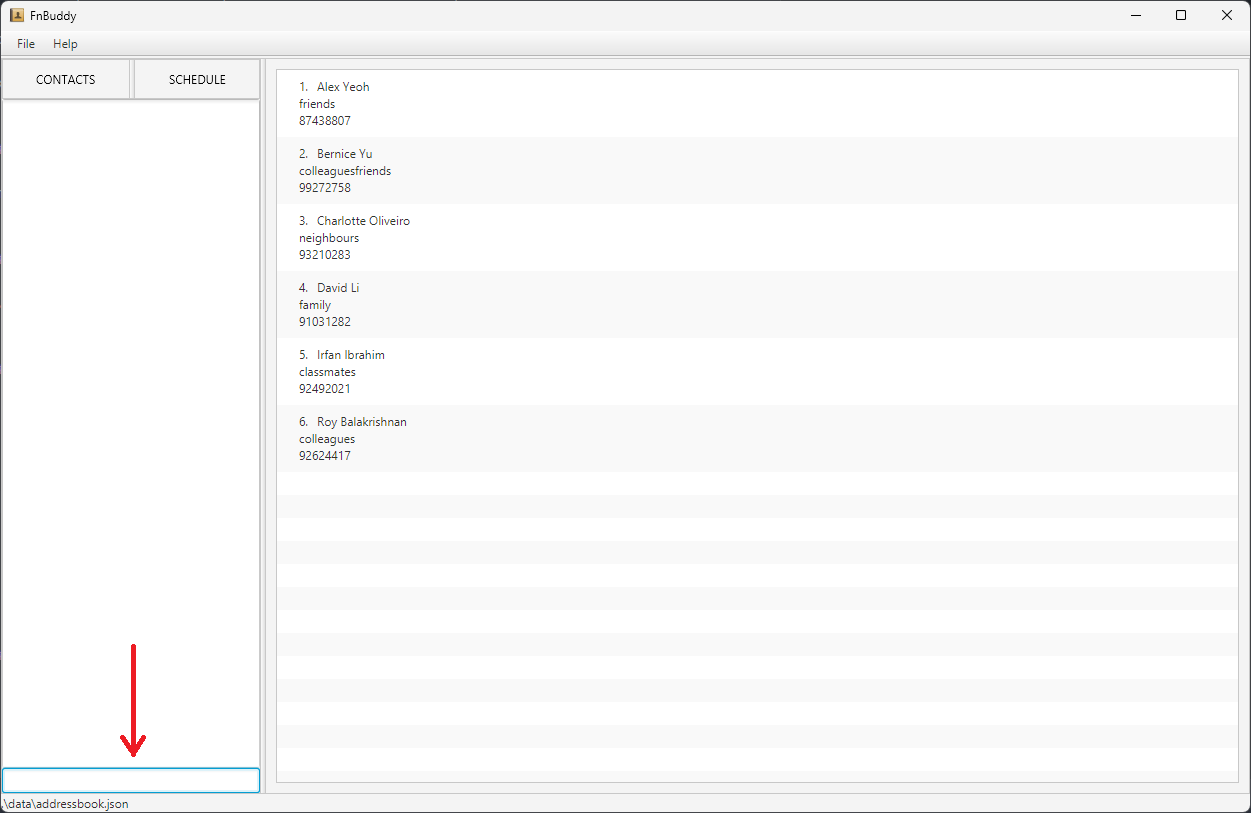
Command Box used to input commands
- GUI - Graphical User Interface
-
A visual interface that allows users to interact with software applications using graphical elements such as windows, buttons, and icons. In the context of this application, the GUI provides a visual representation of the employee contacts and allows users to interact with the application using buttons and text fields. However, our GUI is not as feature-rich as traditional GUI applications and is designed to be used in conjunction with the CLI to provide the full functionality of the application.
How the app displays information in the FnBuddy GUI
-
- FnBuddy - The name of the application
- Employee - A person who works part-time at a restaurant
- Contact - A record of an employee in FnBuddy
- Payroll - The total amount of money paid to employees for their work
FAQ
- Q: What is Java 11?
- A: Java 11 is a release of the Java programming language and runtime environment. In the context of FnBuddy, Java 11 is required to be able to run the fnbuddy.jar program that launches the application. For installation instructions, refer to this guide to install the Java Development Kit (JDK) for Java 11.
- Q: How is FnBuddy’s data stored?
- A: FnBuddy stores its data in local files on your computer (JSON format).
-
Q: I prefer clicking buttons to navigate applications. Will FnBuddy be upgrading its GUI to be friendlier to such users?
- A: As FnBuddy is purposefully targeted towards users who prefer typing, there are currently no plans to add features that support GUI interactions to replace the command-line style of the app.
-
Q: Is there any quick referral in the app itself for commands that I forget?
- A: Click on the help button at the top left of the application’s window for a commands list dropdown.
-
Q: Can I list down an employee with more than 2 names?
- A: As FnBuddy only supports the
FIRST_NAMELAST_NAMEformat, the best solution currently is to list the middle name with either the first or the last. Example: Chua Xun Hao can be saved as-fn Xun Hao -ln Chua.
- A: As FnBuddy only supports the
-
Q: My employee uses a foreign phone number, how can that be reflected in the app?
- A: FnBuddy does not currently support phone number region differentiation and only supports 8-digit inputs after the
-pflag. In future updates, we will add contact regions as a feature.
- A: FnBuddy does not currently support phone number region differentiation and only supports 8-digit inputs after the
- Q: Do I need to provide all the details of an employee when creating the contact?
- A: No, optional details do not need to be added and can be edited into the contact later on if required. Refer to the add contact feature to view which details are compulsory and optional.
- Q: Can I modify the hours worked of my staff?
- A: Currently, the hours worked by an employee are calculated based on the schedule. In future updates, we will add a feature to allow users to modify the hours worked by an employee, you can see more in Planned Enhancements.
- Q: I have an archived contact, but I can’t find it in the main list. How do I unarchive it?
- A: Use the
list archivecommand to view all archived contacts. From there, you can unarchive the contact by using theunarchivecommand. You may also use thelist allcommand to view all contacts, including archived ones.
- A: Use the
- Q: I have a contact for John Doe in the main list, and a contact for another John Doe in the archive list. How do I differentiate between the two?
- A: Currently, the only way to differentiate between the two contacts is by viewing the list they are in, as well as clicking on them to expand their details card. We are planning to add a feature that will display the archive status of each contact on the contact card to make it easier to differentiate between archived and unarchived contacts in future versions.
Command summary
Here’s the updated table with the new features added:
| Command | Description | Format | Examples |
|---|---|---|---|
| Adding a person | Adds a person’s contact to FnBuddy. | add -fn FIRST_NAME -ln LAST_NAME -p PHONE_NUMBER -s SEX -pr PAY_RATE -a ADDRESS [-b BANK_DETAILS] [-t TAG]... |
add -fn John -ln Doe -p 91860934 -s m -pr 20.50 -a 123 Main St Cityadd -fn Jane -ln Smith -p 98765432 -s f -pr 25.50 -a 432 Orchard Road -b posb 123456789 -t waiter -t bartender |
| Listing all persons | Shows a list of all persons in FnBuddy. | list LIST_TYPE |
1. list all2. list archive 3. list main |
| Deleting a person | Deletes the specified person from FnBuddy. | delete PHONE_NUMBER |
delete 91860934 |
| Editing a person | Edits an existing person in FnBuddy. | edit PHONE_NUMBER [-fn FIRST_NAME] [-ln LAST_NAME] [-p PHONE_NUMBER] [-s SEX] [-pr PAY_RATE] [-a ADDRESS] [-b BANK_DETAILS] [-t TAG]... |
edit 91860934 -a Room 504 Marina Bay Sands -pr 25edit 98765432 -t |
| Locating a person by name | Finds persons whose names match any of the given keywords. | find KEYWORD [MORE_KEYWORDS] |
find john tan |
| Clear all contacts | Delete all employee contacts. | clear |
- |
| Exiting the program | Exits the program. | exit |
- |
| Archiving a person | Archives the person’s contact so that it is hidden from the main list of contacts. | archive PHONE_NUMBER |
archive 91860934 |
| Un-archiving a person | Un-archives the person’s contact so that it is shown in the main list of contacts. | unarchive PHONE_NUMBER |
unarchive 91860934 |
| Retrieving payroll | Retrieve employee’s payroll for a given start and end date. | payroll -sd START_DATE -ed END_DATE |
payroll -sd 2024-04-01 -ed 2024-04-30 |
| Schedule employees | Adds a person in FnBuddy to the schedule on a specified date. | schedule PHONE_NUMBER DATE |
schedule 91860934 2024-04-01 |
| Unschedule employees | Removes a person in FnBuddy from the schedule on a specified date. | unschedule PHONE_NUMBER DATE |
unschedule 91860934 2024-04-01 |